Installing the HASP dongle
The HASP (Hardware Against Software Piracy) dongle enables the functionality of Echoview for licensed purchasers, according to which modules are licensed.
If you have purchased Echoview you will be supplied with a USB dongle and a USB installation drive.
|
|
|
USB dongle |
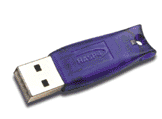
You will need to install the HASP HL device (dongle) driver to use the dongle(s). You can do this as part of installing Echoview or after you have installed Echoview.
For instructions on installing the HASP HL device driver after you have installed Echoview, please contact support@echoview.com
Without a HASP dongle, Echoview will operate in demonstration mode. An Evaluation license is available to explore Echoview licensed features. For further information please contact: info@echoview.com.
Notes:
- HASP dongles require the installation of a device driver. Echoview versions earlier than 3.45 require the HASP 4 device driver. Echoview versions 3.50 and onwards require the HASP Sentinel device driver version 5.19 or higher.
- If the HASP driver fails to install for any reason, please consult the Gemalto a Thales company website for any possible driver updates. New PC architectures and Microsoft Windows updates are appearing regularly and are known on occasion to prevent low level drivers such as these from operating.
How to get an Echoview dongle recognized
The following is a brute-force method that usually corrects dongle recognition errors.
- Unplug the dongle.
- Uninstall Echoview with Windows Control Panel > Programs > Uninstall programs.
- Close all programs and restart your computer.
- Reinstall Echoview from the Echoview USB drive or Echoview website.
- Start Echoview, click on the Help menu and click Check for Updates, then install any updates that are available for the version of Echoview you are using.
- Restart your computer.
- Plug in the dongle.
- Start Echoview.
For further assistance contact support@echoview.com
See also
Computer requirements
Installing Echoview
Solutions to common problems
Requesting support: Dongle version and name