Navigating Echoview
Echoview makes extensive use of Microsoft Windows navigation and presentation conventions. Toolbars, menus and dialog boxes all work in a manner which will be familiar to users of applications such as Microsoft Word or Excel. In addition, customized shortcut keys are used for common tasks and to make using Echoview as ergonomic as possible.
We recommend using one hand on the keyboard for tasks such as scrolling and zooming echograms, while the other hand makes selections with the mouse, particularly when working with large data sets.
- Context-sensitive menus
- Shortcuts
- Toolbars
- Workspace and docking
- Echogram information
- Navigating echograms
- Navigating cruise tracks
- Navigating graphs
- Navigating the Dataflow window
- Navigating scenes
- Navigating the help file
Context-sensitive menus
Menus and menu choices in Echoview vary according to the context. For example, the Fileset menu appears when a filesets window is active, the Echogram menu appears when an echogram window is active.
Echoview also makes extensive use of the Shortcut (right-click) menu to give quick access to frequently-used commands.
Shortcuts
Shortcut keys have been widely implemented in Echoview, permitting rapid navigation and reducing mouse travel.
Toolbars
The Echoview window offers a number of toolbars that provide quick access to useful features and actions.
Toolbars can be displayed or hidden using View menu > Toolbars > Toolbar name. In addition, toolbars can be moved (with the mouse pointer) to any position on the screen.
The following toolbars are available:
Note: Windows can have an associated icon that is used on tabs or in menus.
Workspace and docking
The Echoview application opens an Echoview window. You can arrange Echoview display elements within the Echoview window. You can also arrange Echoview display elements outside the Echoview window (on the desktop or extended desktop). Collectively the workspace can be saved by Echoview so that when you open the EV file, your workspace is reinstated.
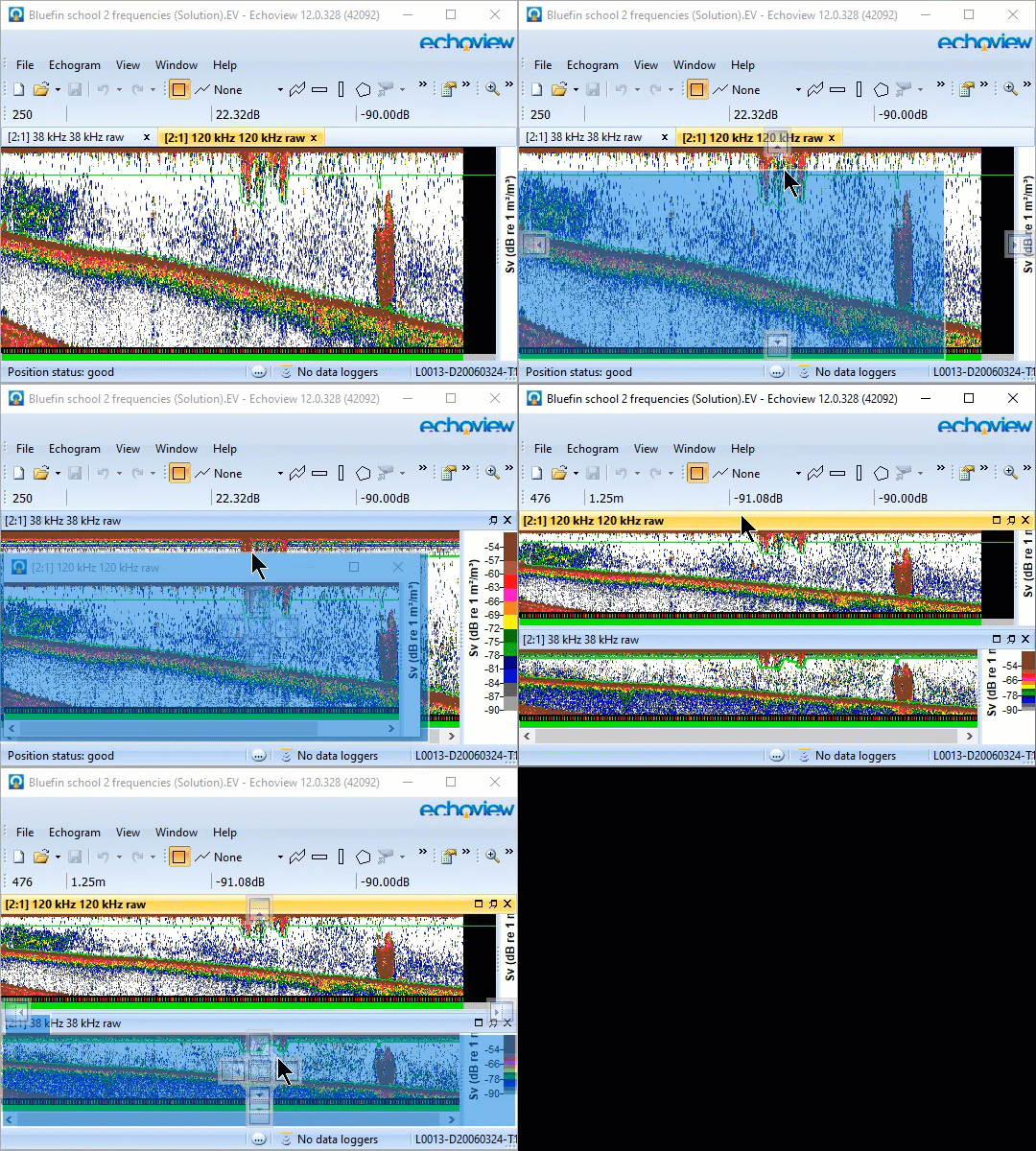
The docking system used by Echoview allows you to arrange Echoview display elements in a number of ways to suit your workflow.
| Echoview display element | |||
|
Action |
Windows Echograms, Scenes, Dataflow, Fileset |
Dialog boxes |
Utility dialog boxes Messages, Region browser, Live viewing, Details |
| Dock to Echoview window (sides) | P | ||
| Dock to pane | P | ||
| Tab to a panel | P | ||
| Float | P | P | P |
Panels and panes
|
The ideas of a panel and panes within panels underpin how window to window docking (and the arrangement of windows) works in the Echoview workspace. A panel can contain a window or windows. In the case of multiple windows in a panel, each window in the panel occupies a pane. A special case is where a panel has one pane, the Echoview application window is one example of this special case. Drag windows to a new position:
Optimizes panels and panes within the Echoview window. Window menu, Arrange Panes Optimizes panes in a panel. Window menu, Close All Options to close all instances of a window type.
See also Global keyboard shortcuts, Filesets window.
Specify how a new window is opened, to dock or float, with:
|
 |
Echogram information
The nature of the data under the mouse pointer is displayed or can be acquired from these places:
|
Where |
Type of descriptors |
|
Information about lines, range/depth, beams, geographic position, time, data file. |
|
|
Ping, range/depth, data value, display minimum. |
|
|
Details can include: General, Range, Target, Ping (from file), Navigation, Rendering, File, Color display, Calibration, Analysis, Grid, Notes. |
|
|
Displays information, warning and error messages that are generated during the course of Echoview's operation. |
See also
Echogram navigation
Graph navigation
Echogram status bar
3D Navigation