About region detection configurations
An EV file can store multiple named region detection configurations for fish track detection, single beam school detection and multibeam school detection. Each configuration stores a set of detection properties, allowing you to apply different settings efficiently, consistently and repeatably under different hydroacoustic conditions. Multiple configurations are also useful when optimizing detection settings or conducting sensitivity analyses.
For optimization or sensitivity analyses, consider assigning regions produced by different detection configurations to different region classes. You can then compare the results by controlling which region classes are displayed using the Visible region classes settings on the Regions page of the Variable Properties dialog box. See also: School detection example.
- Detection configuration name
- Initial, preferred and upgraded configurations
- Region detection configuration information elsewhere
Detection configuration name
Each detection configuration name must be unique among all detection configuration names and other named objects in the EV file, including Region Classes, Variables, Platforms, Transducers, Scenes and Sticky notes. See also: About variables: Name conventions.
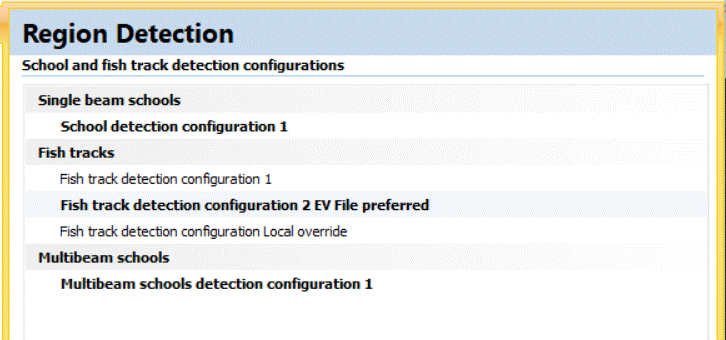
Region detection configurations are managed on the Region Detection page of the EV File Properties dialog box. This page lists all region detection configuration names.
EV file region detection configurations are organized under the following detection types:
- Single beam schools – School Detection Configuration Properties
- Fish tracks – Fish Track Detection Configuration Properties
- Multibeam schools – Multibeam School Detection Configuration Properties
Consider creating region classes for different detection configurations so that the resulting regions can be differentiated. At detection time, use Assign class to select the region class for detected regions. You can also choose whether to delete existing regions with the assigned class before performing the detection.
Select the configuration to use from the Detection configuration list in the applicable detection dialog box:
A variable-level preferred configuration can be selected on the Regions page of the Variable Properties dialog box for supported variable data types.
Initial, preferred and upgraded configurations
Preferred detection configuration
Each detection type has an EV-file-level preferred configuration. The preferred configuration is displayed in bold on the Region Detection page of the EV File Properties dialog box. To change it, select a configuration and click Prefer.
An applicable variable can override the EV-file-level preference. When a detection dialog box opens, Echoview initially selects the detection configuration in the following order:
- The preferred configuration specified on the Regions page of the variable’s properties.
- If the variable’s preferred configuration is None, the preferred configuration specified on the Region Detection page of the EV File Properties dialog box.
Selecting a different configuration in a detection dialog box does not change the stored preference. To update the variable-level preference, select Set as preferred detection configuration for this variable before performing the detection.
Initial detection configurations
A new EV file contains an initial configuration with default property values for each supported detection type. These configurations provide starting points from which you can determine effective detection settings for your data.
Upgrade for EV files created before Echoview 17
EV files created prior to Echoview 17 are upgraded upon opening in Echoview 17. The detection settings of the pre-Echoview 17 EV file are assigned to the initial configuration for each applicable detection type.
What changed for fish track detection?
Echoview 17 deprecated the Track Detection Properties dialog box and moved its properties to the Fish Track Detection Configuration Properties dialog box. Detection properties previously accessed through traditional COM are now accessed through the Command interface. Refer to the updated process for detecting fish tracks.
What changed for single beam school detection?
Echoview 17 deprecated the Schools page of the EV File Properties dialog box. The content was moved to the School Detection Configuration Properties dialog box. Refer to the updated process for single beam school detection.
What changed for multibeam school detection?
Echoview 17 deprecated the 3D Schools Detection Properties dialog box. The Detection algorithm and Region width settings were moved to the Detect 3D Schools dialog box. Region width applies when the By ping detection algorithm is selected. The Size criteria properties were moved to the Multibeam School Detection Configuration Properties dialog box. Refer to the updated process for multibeam school detection.
What changed for scripting with COM and the console?
COM EvVariableAcoustic.DetectFishTracks starts a fish track detection. This is complemented by Command interface support for fish track detection configuration properties and objects.
COM EvVariableAcoustic.DetectSchools starts a school detection or multibeam school detection. This is complemented by Command interface support for:
- school detection configuration properties and objects
- multibeam school detection configuration properties and objects
Region detection configuration objects are supported for fish track detection, school detection (single beam) and multibeam school detection. Command interface support for region detection configuration objects includes a list of all region detection configuration object names, preferred configurations on the Region Detection page of the EV File Properties dialog box, and the preferred configuration properties of the Regions page of the Variable Properties dialog box. The Properties Information window enables you to discover region detection configuration property names and characteristics. The window's right-click menu, Copy for Console, enables you to paste a command into the Console command line. Command line actions are supported by the COM EvApplication.Exec() method.
Note: Region detection configurations cannot be created or deleted using the Command interface. Create and delete configurations on the Region Detection page of the EV File Properties dialog box.
Notes:
- Echoview 17 deprecated the following COM support:
- EvFishTrackingAnglesAndRange
- EvFishTrackingProperties
- EvFishTrackingWeights
- EvFileProperties.FishTracking
- EFishTrackingDataDimensions enum
- Scripts that use deprecated fish tracking property objects can be updated to use equivalent Command interface properties through the COM EvApplication.Exec method.
Deprecated fish track property snippet |
Echoview 17 Command interface |
EV 16.1 EvFishTrackingProperties snippet

Dim EvApp: Set EvApp = CreateObject("EchoviewCom.EvApplication")
'This will begin at the first (already) open EV file.
Dim EvFile: Set EvFile = EvApp.EvFiles.Item(0)

'Changing Fish tracking detection properties.
Dim FTProps: Set FTProps = EvFile.Properties.FishTracking

 FTProps.DataDimensions = 4

	FTProps.Alpha.MajorAxis = 0.1
	FTProps.Alpha.MinorAxis = 0.2
	FTProps.Alpha.Range = 0.3

	FTProps.Beta.MajorAxis = 0.4
	FTProps.Beta.MinorAxis = 0.5
	FTProps.Beta.Range = 0.6

	FTProps.ExclusionDistance.MajorAxis = 0.7
	FTProps.ExclusionDistance.MinorAxis = 0.8
	FTProps.ExclusionDistance.Range = 0.9
	FTProps.MissedPingExpansion.MajorAxis = 1.0
	FTProps.MissedPingExpansion.MinorAxis = 1.1
	FTProps.MissedPingExpansion.Range = 1.2

	FTProps.Weights.MajorAxis = 1.3
	FTProps.Weights.MinorAxis = 1.4
	FTProps.Weights.Range = 1.5
	FTProps.Weights.TS = 1.6
	FTProps.Weights.PingGap = 1.7

	FTProps.MinimumTargets = 4
	FTProps.MinimumPings = 5
	FTProps.MaximumGap = 3
|
Alternatively, view the detection configurations under the Fish tracks section of the Region Detection page of the EV File Properties dialog box.
Figure 1: The Region Detection page showing region detection configuration names organized under their respective detection types. Preferred configurations are displayed in bold. To view the fish track detection settings and values for a configuration: In the Console, type:
The Console return is similar to the following. The deprecated DataDimensions COM property is replaced by the Command interface property TrackDetection2d. TrackDetection2d has a boolean value.
The remaining deprecated fish track detection properties are replaced by Command interface properties with similar names. The properties correspond to settings in the Fish Track Detection Configuration Properties dialog box. To change TrackDetection2d to use the other algorithm type: Fish track detection configuration 2 EV File preferred | TrackDetection2d =| true Fish track detection configuration property values are changed in a similar way. You can also use chained commands to change multiple properties in a single command line. This fish track detection configuration example may be used as a general template for school detection configuration objects and multibeam school detection configuration objects. Examples of these object names are School detection configuration 1 and Multibeam schools detection configuration 1, respectively. |
Region detection configuration information elsewhere
Region detection configuration information is available:
- on the Detection settings tab of the Region Browser
- in the Detection settings column of the Regions window
- in a region definitions export
- in exports that include the Region_detection_settings analysis variable
- in EV file templates
See also
About regions
About 3D regions
Classifying regions
About graphs: graphing region selections
Exporting regions
Joining regions
Editing 2D regions
Creating transects